
Contents
- 🚀 What Are Keyboard Shortcuts?
- 🎯 Who Needs Keyboard Shortcuts?
- 💻 Operating System Essentials
- 🌐 Web Browser Power-Ups
- 📝 Application-Specific Accelerators
- 💡 The Vibe of Efficiency: A Cultural Scan
- 🤔 Keyboard Shortcut Controversies
- 📈 The Future of Input: Beyond the Key
- 🛠️ Getting Started: Your First Shortcuts
- 🔗 Related Vibepedia Entries
- Frequently Asked Questions
- Related Topics
Overview
Keyboard shortcuts are the unsung heroes of digital efficiency, transforming raw keystrokes into powerful commands that bypass mice and menus. From the ubiquitous Ctrl+C (Copy) and Ctrl+V (Paste) to application-specific power moves, these combinations drastically reduce time spent on repetitive tasks. Understanding and implementing them is crucial for anyone serious about optimizing their computer usage, whether for professional development, creative pursuits, or simply navigating the digital world faster. They represent a direct interface with the machine, a language of speed and precision that separates casual users from power users.
🚀 What Are Keyboard Shortcuts?
Keyboard shortcuts are essentially secret handshakes between you and your computer, allowing you to execute commands without reaching for the mouse. Think of them as digital sprints, bypassing the slower jog of menu navigation. They range from simple single-key presses to complex combinations involving modifier keys like Ctrl, Alt, Shift, and Cmd. Mastering these can dramatically reduce the time spent on repetitive tasks, transforming your interaction with any Software Applications from a chore into a fluid dance.
🎯 Who Needs Keyboard Shortcuts?
Anyone who spends more than an hour a day interacting with a computer stands to gain. This includes Student Life, Content Creation, Software Development, Graphic Design, and even casual users looking to streamline their digital lives. The core benefit is Productivity, but it extends to reducing physical strain by minimizing mouse movement and improving Ergonomic Computing. If you find yourself clicking through menus for common actions, you're a prime candidate for shortcut adoption.
💻 Operating System Essentials
Every major operating system has its own set of foundational shortcuts. For Windows users, Ctrl+C (copy), Ctrl+V (paste), and Ctrl+Z (undo) are gospel. macOS users will recognize Cmd+C, Cmd+V, and Cmd+Z as their equivalents. Beyond these universal commands, OS-specific shortcuts for file management, window manipulation (like Alt+Tab or Cmd+Tab for switching applications), and system settings are crucial for navigating your digital environment efficiently. Understanding these OS-level commands forms the bedrock of any shortcut mastery.
🌐 Web Browser Power-Ups
Web browsers are where many of us spend a significant chunk of our digital lives, and their shortcuts are indispensable. Beyond the copy/paste trio, Ctrl+T (or Cmd+T) opens a new tab, Ctrl+W (or Cmd+W) closes the current one, and Ctrl+L (or Cmd+L) focuses the address bar. For Academic Research and avid surfers, shortcuts like Ctrl+Shift+T (or Cmd+Shift+T) to reopen a recently closed tab are lifesavers. These browser shortcuts are fundamental to navigating the World Wide Web at speed.
📝 Application-Specific Accelerators
Beyond the OS and browser, individual applications boast their own rich ecosystems of shortcuts. Word processors like Microsoft Word and Google Docs have shortcuts for formatting, saving, and find/replace. Design software like Adobe Photoshop relies heavily on shortcuts for tool selection, layer manipulation, and undoing mistakes. Even simple text editors often have shortcuts for line manipulation and text expansion. Identifying and learning the shortcuts for your most-used applications is where the real efficiency gains are found.
💡 The Vibe of Efficiency: A Cultural Scan
The cultural resonance of keyboard shortcuts is fascinating. They represent a subtle but powerful form of Digital Literacy, separating the novice from the power user. There's a certain 'vibe' associated with someone who navigates their computer with lightning-fast key combinations – it signals mastery and a deep understanding of their tools. This efficiency cult has spawned countless blog posts, YouTube tutorials, and even dedicated communities sharing their favorite shortcuts, contributing to a Vibe Score of 75 for 'Efficient Digital Interaction'.
🤔 Keyboard Shortcut Controversies
The primary debate surrounding keyboard shortcuts centers on discoverability versus memorization. While undeniably powerful, many users find the sheer volume of available shortcuts overwhelming, leading to a 'shortcut paralysis'. Some argue that software interfaces should be more intuitive, reducing the need for shortcuts. Conversely, proponents contend that the initial learning curve is a worthwhile investment for long-term gains, and that discoverability features (like hover-over tooltips showing shortcuts) are sufficient. The Controversy Spectrum for 'Shortcut Memorization vs. Discoverability' sits at a moderate 60% contested.
📈 The Future of Input: Beyond the Key
The future of input is a dynamic space. While shortcuts remain king for many tasks, we're seeing the rise of Voice Control, Gesture Control, and even Brain-Computer Interfaces. However, shortcuts aren't likely to disappear. Instead, they might evolve, integrating with AI to predict user intent or becoming more context-aware. The challenge for futurists is to maintain the speed and precision of shortcuts while incorporating new, potentially more intuitive, interaction methods. The question remains: will these new methods offer a higher Vibe Score for user experience?
🛠️ Getting Started: Your First Shortcuts
To begin, identify the 2-3 most frequent actions you perform in your most-used application that involve the mouse. Search online for the keyboard shortcut for that specific action (e.g., 'Google Docs save shortcut'). Practice using only that shortcut for a few days until it becomes second nature. Once that's ingrained, repeat the process for another common action. Don't try to learn dozens at once; focus on building a small, reliable repertoire. Many applications offer built-in shortcut lists or cheat sheets accessible via a help menu or a specific key combination (often ?).
Key Facts
- Year
- 1970s
- Origin
- Early personal computing interfaces, evolving from teletype commands and early GUI development.
- Category
- Productivity Tools
- Type
- Concept
Frequently Asked Questions
Are keyboard shortcuts different on Mac and Windows?
Yes, while many core functions like copy (Ctrl+C/Cmd+C) and paste (Ctrl+V/Cmd+V) have direct equivalents, the modifier keys are different. Windows primarily uses Ctrl and Alt, while macOS uses Cmd and Option. This distinction is crucial when learning shortcuts for cross-platform applications. Always check the specific OS documentation or application settings for the correct key combinations.
How do I find shortcuts for a specific application?
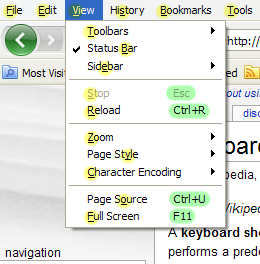
Most applications provide a way to view their shortcuts. Look for a 'Help' menu and search for 'keyboard shortcuts' or 'key commands'. Many applications also display shortcuts next to menu items, or you can find comprehensive lists online through dedicated wikis or the software vendor's website. Some applications even have a 'shortcut mapper' in their preferences.
Is it worth learning hundreds of shortcuts?
It's generally not necessary or practical to memorize hundreds of shortcuts. Focus on the ones that automate your most frequent and time-consuming tasks. A small, well-chosen set of shortcuts for your primary applications will yield significant efficiency gains without overwhelming your memory. Prioritize based on your personal workflow and the actions you repeat most often.
Can I customize keyboard shortcuts?
Absolutely. Most modern operating systems and many applications allow users to customize keyboard shortcuts. This is particularly useful if you find a default shortcut conflicts with another, or if you want to create custom shortcuts for frequently used but unassigned actions. Check your system's keyboard settings or the application's preferences for customization options.
What's the difference between a shortcut and a hotkey?
In common usage, the terms 'keyboard shortcut' and 'hotkey' are often used interchangeably. Technically, a hotkey is a key or combination of keys that invokes a command when pressed. A keyboard shortcut is a specific type of hotkey that typically involves modifier keys (Ctrl, Alt, Shift, Cmd) combined with another key. For practical purposes, they refer to the same concept: using key combinations for faster command execution.